TextScoop
Capture Any Text. Reimagined.
User Guide
What TextScoop does
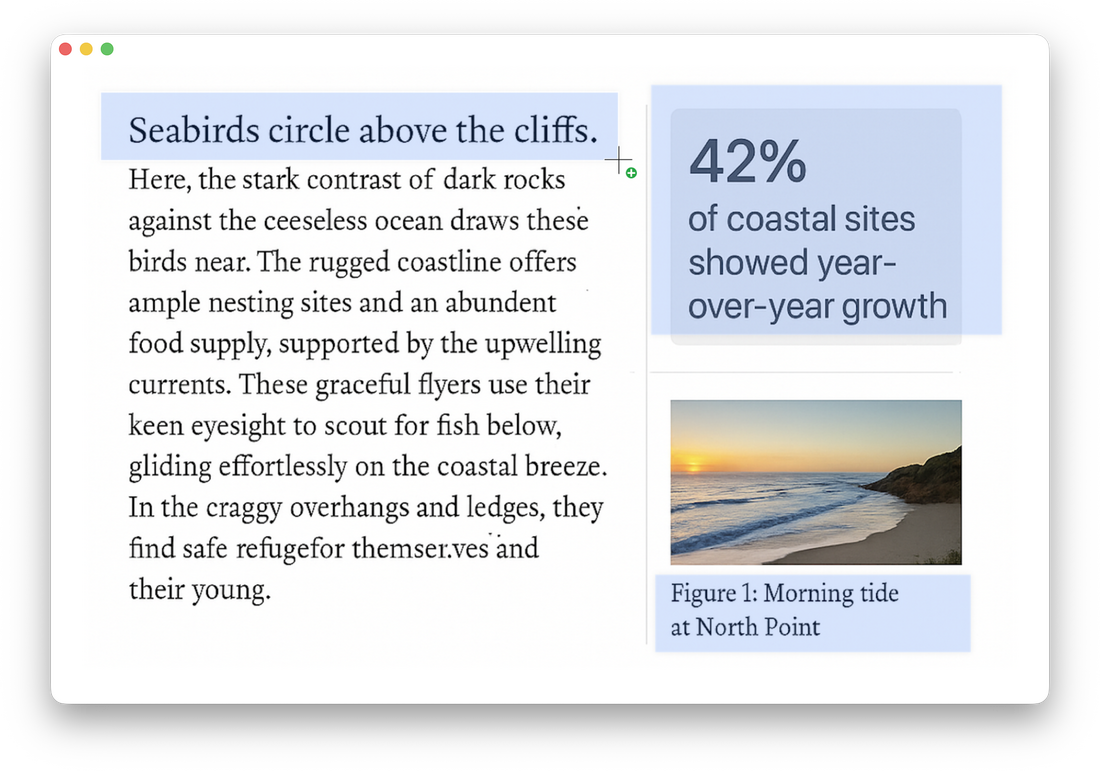
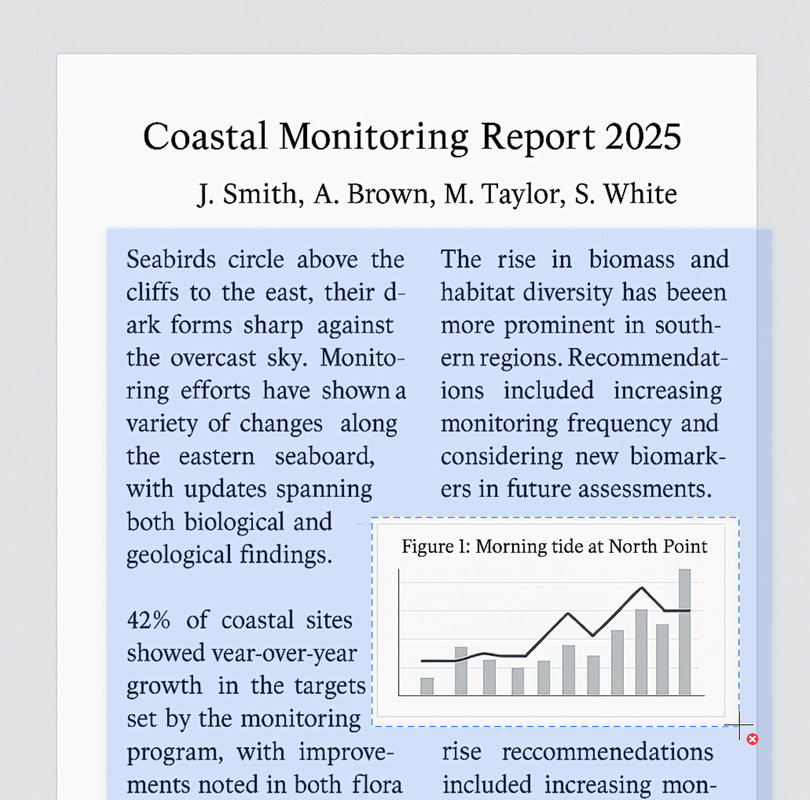
TextScoop lets you extract text from anywhere on screen and treat it like regular text—copy it, search it, translate it, open links, run Services, fix formatting, and more. It also supports multi-region capture with add/subtract gestures so you can include only what you need.
Highlights
Quick start
Capture basics
Core actions
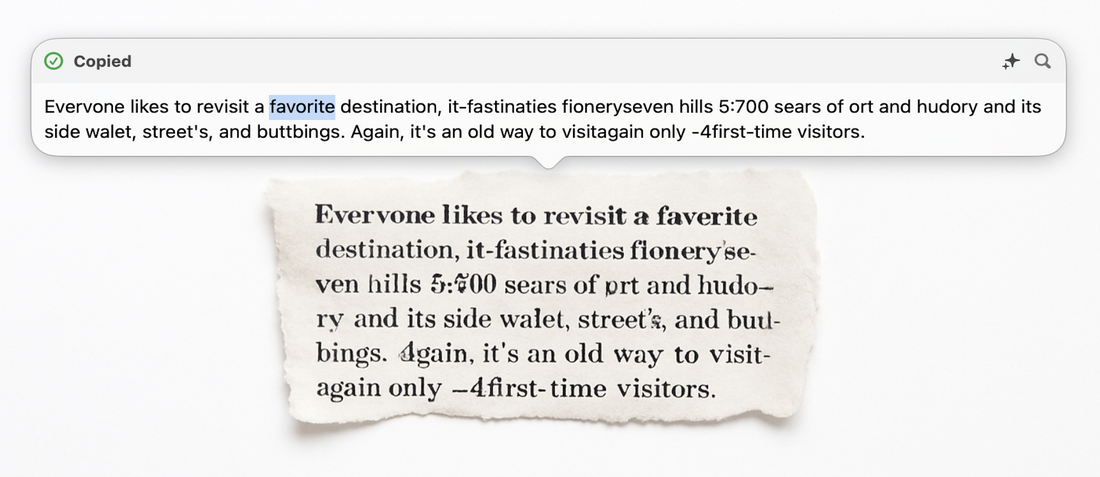
Copy text
Copies recognized text to the clipboard automatically.
Variants (shortcut-only, to keep the menu tidy):
Open link
Opens the first detected URL (works on visible links and QR/barcodes that encode URLs) in your default browser.
Search the web
Opens your default browser and searches for the captured text using your default search engine.
Look Up
Shows the macOS Look Up panel (Dictionary, Wikipedia, Siri Knowledge, etc.) for the captured text.
Translate
Read Aloud
Starts text-to-speech playback of the captured text using your system voice/rate. Invoke the command again to stop.
Summarize
Produces a concise summary (short paragraph or bullets) of the captured text.
Create Key Points
Extracts bulleted highlights (facts, action items, names/dates) from the captured text.
Services (system menu)
Opens the macOS Services menu scoped to the captured text so you can pass it to other apps/automations.
Share
Opens the macOS Share sheet (Messages, Mail, Notes, Reminders, AirDrop, extensions, etc.).
QR & barcodes
Drag over a code to scan; detected contents are copied to the clipboard automatically. Keep the entire code within your selection and avoid glare/motion blur.
Tables → CSV / TSV / Markdown / HTML
TextScoop recognizes simple on-screen tables and copies them in the format you choose:
After-copy mini editor
After copy/recognition, TextScoop can show a mini editor (configurable) so you can tweak text and apply quick transforms.
Features
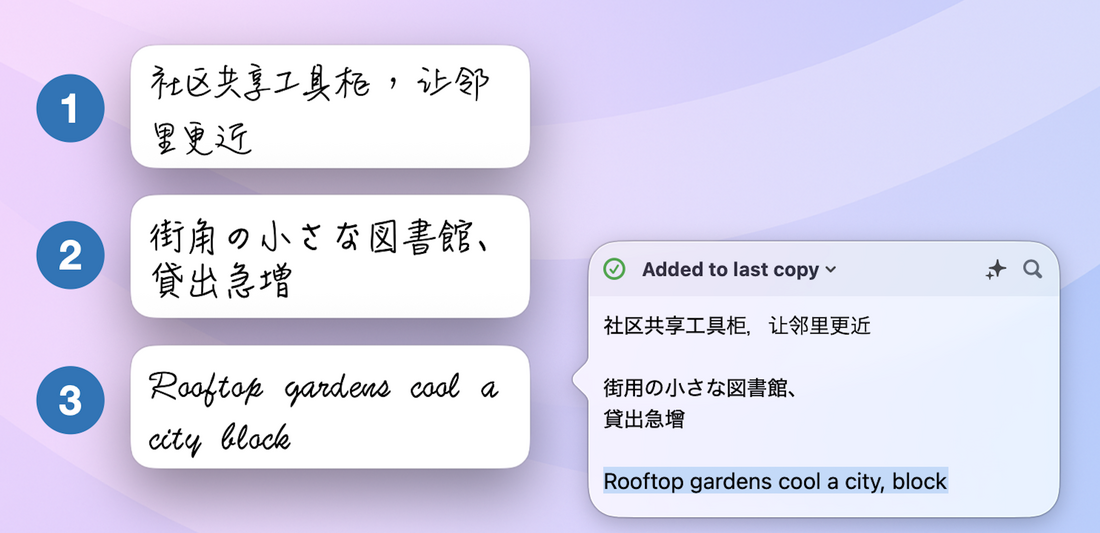
Combine multiple captures (“Copy Multiple Items”)
Build one block from several captures, then paste it once.
Settings & customization
Menu bar, Dock, launching
Shortcuts (at a glance)
Tips & troubleshooting
That’s it! You’re ready to scoop, clean, and use text from anywhere on your screen with TextScoop.
- What TextScoop does
- Quick start
- Capture basics
- Core actions
- Copy text
- Open link
- Search the web
- Look Up
- Translate
- Read Aloud
- Summarize
- Create Key Points
- Services (system menu)
- Share
- QR & barcodes
- Tables → CSV / TSV / Markdown / HTML
- After-copy mini editor
- Combine multiple captures (“Copy Multiple Items”)
- Settings & customization
- Menu bar, Dock, launching
- Shortcuts (at a glance)
- Tips & troubleshooting
What TextScoop does
TextScoop lets you extract text from anywhere on screen and treat it like regular text—copy it, search it, translate it, open links, run Services, fix formatting, and more. It also supports multi-region capture with add/subtract gestures so you can include only what you need.
Highlights
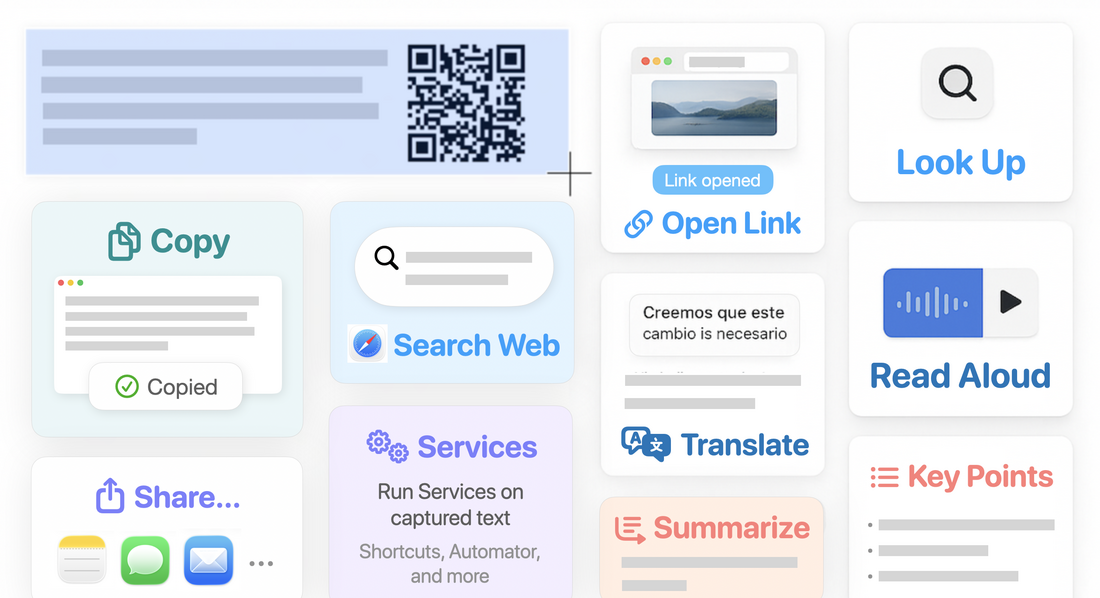
- Copy text (with or without line breaks) and tables
- Read QR and barcodes
- Look Up (Dictionary, Wikipedia, Siri Knowledge)
- Translate, Search the web, Open links
- Summarize / Key points
- Read aloud (text-to-speech)
- Share via macOS Share sheet
- Run macOS Services directly
- Fix formatting (remove line breaks, de-hyphenate, trim, keep line breaks)
- Find & replace on captured text
Quick start
- Click the TextScoop menu-bar icon and choose an action (e.g., Copy Text).
- Drag to select the on-screen region. Release to run the action.
- (Optional) Use Shift (or Option, configurable) while dragging to add/subtract regions.
- Edit in the mini editor or paste from the clipboard.
Capture basics
- Select: Click an action → drag a rectangle over the content → release.
- Add/subtract regions: Hold the configured modifier while dragging
- Start outside selection = add a region
- Start inside selection = subtract a region
- Default modifier is Shift (changeable in Settings).
- Cancel: Press Esc anytime.
- Best results: Use clear, high-contrast text; zoom for small items.
Core actions
Copy text
Copies recognized text to the clipboard automatically.
Variants (shortcut-only, to keep the menu tidy):
- Copy with Line Breaks — preserves line breaks as seen on screen.
- Copy without Line Breaks — removes line breaks and fixes end-of-line hyphens.
Open link
Opens the first detected URL (works on visible links and QR/barcodes that encode URLs) in your default browser.
Search the web
Opens your default browser and searches for the captured text using your default search engine.
Look Up
Shows the macOS Look Up panel (Dictionary, Wikipedia, Siri Knowledge, etc.) for the captured text.
Translate
- Auto-detects source language; target language defaults to system language (change in Settings).
- After translation, you can copy the result to the clipboard.
Read Aloud
Starts text-to-speech playback of the captured text using your system voice/rate. Invoke the command again to stop.
Summarize
Produces a concise summary (short paragraph or bullets) of the captured text.
Create Key Points
Extracts bulleted highlights (facts, action items, names/dates) from the captured text.
Services (system menu)
Opens the macOS Services menu scoped to the captured text so you can pass it to other apps/automations.
Share
Opens the macOS Share sheet (Messages, Mail, Notes, Reminders, AirDrop, extensions, etc.).
QR & barcodes
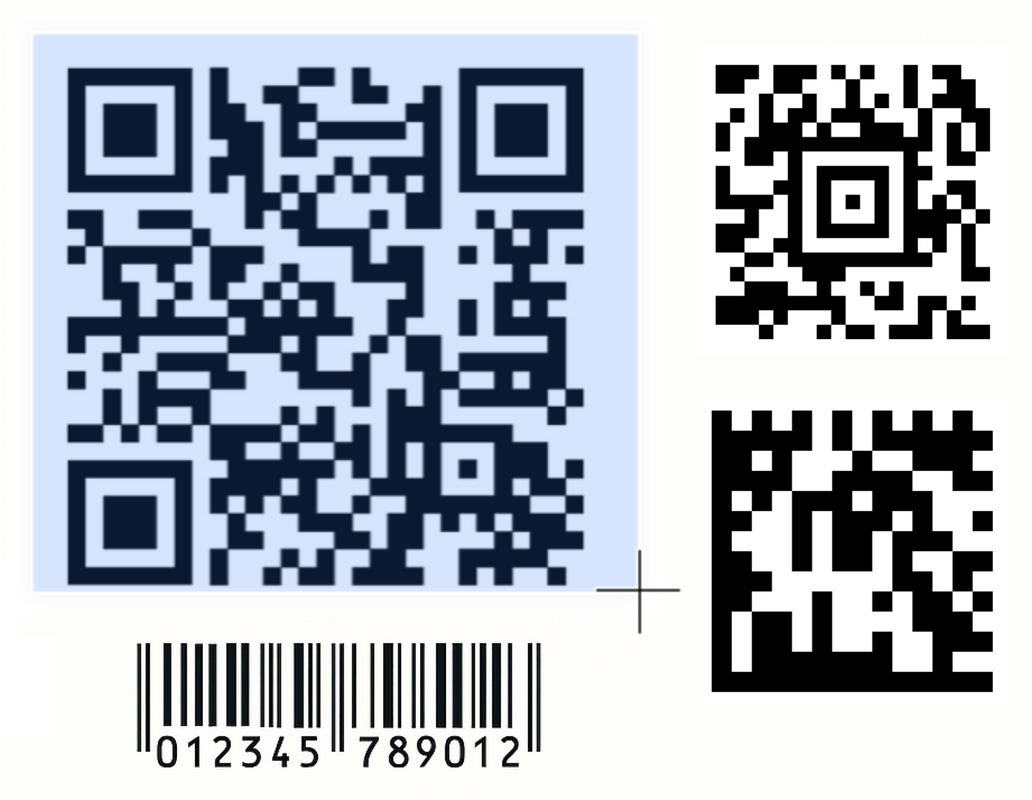
Drag over a code to scan; detected contents are copied to the clipboard automatically. Keep the entire code within your selection and avoid glare/motion blur.
Tables → CSV / TSV / Markdown / HTML
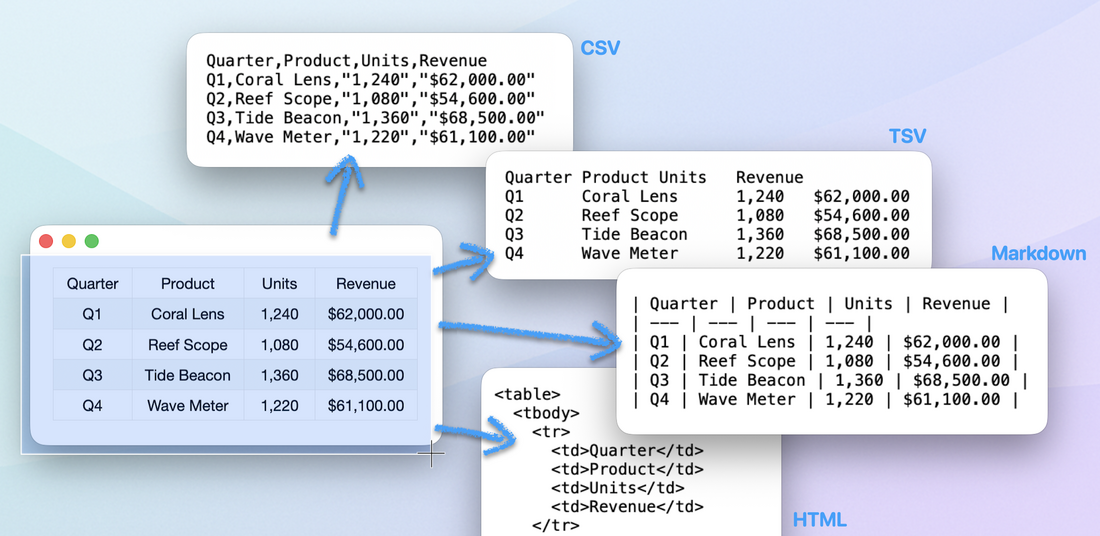
TextScoop recognizes simple on-screen tables and copies them in the format you choose:
- Copy Table as CSV — comma-separated; great for Excel/Numbers/Sheets and text editors.
- Copy Table as TSV — tab-separated; columns separated by tabs.
- Copy Table as Markdown — pipe | table for Markdown editors (GitHub, Slack, Notion, Obsidian, VS Code).
- Copy Table as HTML — <table> fragment for HTML/Rich-text editors (Notion, Confluence, Google Docs, many CMS/email apps).
After-copy mini editor
After copy/recognition, TextScoop can show a mini editor (configurable) so you can tweak text and apply quick transforms.
Features
- Edits you make are re-copied to the clipboard when the window closes.
- Transforms (Sparkle button or shortcuts):
- Remove Line Breaks — removes line breaks & fixes hyphenation
- Remove Blank Lines — deletes empty/blank lines
- Trim Surrounding Whitespace — trims both ends
- (When working with combined text; see below)
- Remove Earlier Text — drop previously appended text (if unchanged)
- Remove Capture — drop the most recent capture (if unchanged)
- Find & Replace — search within the captured text and replace (powerful, works on selection or entire text).
- Undo/Redo — undo/redo changes with ⌘Z / ⇧⌘Z.
- Preference: Settings → After copy lets you show the mini editor, show a brief confirmation, or do nothing.
Combine multiple captures (“Copy Multiple Items”)
Build one block from several captures, then paste it once.
- In Settings, enable Keep adding to last copy.
- Run any Copy… action repeatedly; each new capture appends to the prior copied content.
- Paste with ⌘V — TextScoop auto-clears the combined block afterward, so the next Copy… starts fresh.
- Auto-clear after paste requires Accessibility permission (grant it in System Settings).
- Optional: assign a shortcut for Remove combined items.
- In the mini editor you can use Remove Earlier Text / Remove Capture to adjust the combined result.
Settings & customization
- Launch at Login — start LiftText automatically.
- Show app icon in Dock — toggle Dock icon visibility.
- Region modifier — choose Shift or Option for add/subtract while dragging.
- After copy — choose Mini Editor / Confirmation / Do nothing.
- Combine captures — Keep adding to last copy; optional shortcut to clear.
- Accessibility — required for auto-clearing combined items after ⌘V.
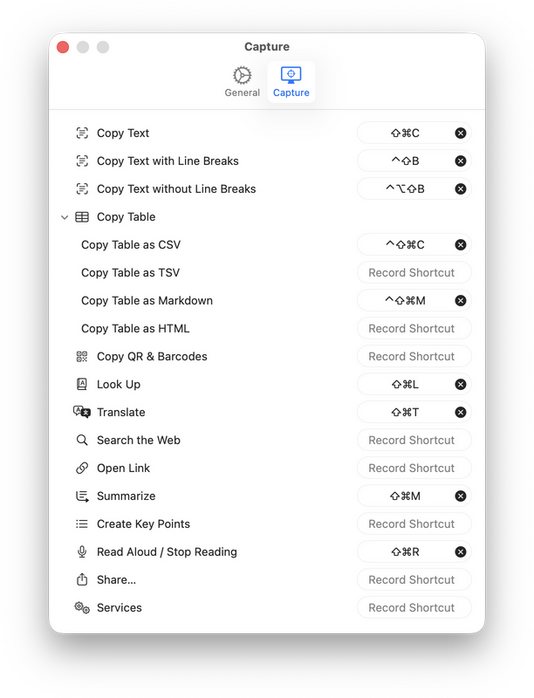
- Shortcuts — assign hotkeys for any action (including the two “Copy Text” variants).
Menu bar, Dock, launching
- Menu-bar app: After launching, the TextScoop icon appears at the top of your screen. Click it to open the menu.
- If the icon is hidden: macOS may hide icons when space is tight—temporarily remove other icons, then ⌘-drag TextScoop’s icon to the right side so it remains visible.
- Dock icon: Clicking the Dock icon opens the same menu near your pointer. Hide/show it in Settings.
- Open Settings: From the menu-bar icon or the Dock icon, choose Settings…
- Launch at Login: Settings → General → Launch at Login.
Shortcuts (at a glance)
- Esc — cancel a capture
- Shift (or Option, per Settings) — add/subtract regions while dragging
- ⌘1, ⌘2, … — run transforms in the mini editor (order matches the transform menu)
- Copy Text and others — available via shortcuts you assign in Settings
- Undo / Redo — ⌘Z / ⇧⌘Z in the mini editor
Tips & troubleshooting
- For OCR accuracy, aim for high contrast and sharper content; zoom for small text or codes.
- For tables, keep the selection tight around the table and use add/subtract to exclude headers/footers you don’t want.
- If combined text doesn’t clear after paste, confirm Accessibility permission is granted.
- If you don’t see the menu-bar icon, free up space and ⌘-drag it rightward to keep it visible next time.
That’s it! You’re ready to scoop, clean, and use text from anywhere on your screen with TextScoop.